
Tech Alert | Windows crashes related to Falcon Sensor | 2024-07-19

Latest updates
- CrowdStrike has announced they have a working cloud based solution for remote workers and computers with BitLocker. Contact support@navisec.io for implementation.
- Step by step self-remediation guidance for remote users is available at https://www.youtube.com/watch?v=Bn5eRUaMZXk.
- Microsoft has released a USB tool to help expedite resolving hosts still impacted. See https://techcommunity.microsoft.com/t5/intune-customer-success/new-recovery-tool-to-help-with-crowdstrike-issue-impacting/ba-p/4196959.
- How to boot Windows Safe Mode (with or without command prompt) — see below.
- How to receive your BitLocker Recovery Key — see below.
Summary
CrowdStrike is aware of reports of crashes on Windows hosts related to the Falcon Sensor.
Details
- Symptoms include hosts experiencing a bugcheck/blue screen error related to the Falcon Sensor.
- Windows hosts not impacted require no action.
- Hosts brought online after 0527 UTC are unaffected.
- The issue does not impact Mac- or Linux-based hosts.
- Channel file
C-00000291*.syswith a 0527 UTC timestamp or later is the reverted (good) version. - Channel file
C-00000291*.syswith a 0409 UTC timestamp is the problematic version. - Multiple
C-00000291*.sysfiles may be present; one with a 0527 UTC or later timestamp indicates the good content is active.
Current Action
CrowdStrike Engineering has identified a content deployment related to this issue and reverted those changes. If hosts continue crashing, use the workaround steps below.
CrowdStrike statement: "We assure our customers that CrowdStrike is operating normally and this issue does not affect our Falcon platform systems. If your systems are operating normally, there is no impact to their protection if the Falcon sensor is installed. Falcon Complete and OverWatch services are not disrupted by this incident."
Workaround Steps for individual hosts
- Reboot the host to download the reverted channel file.
- If crashing continues, boot Windows into Safe Mode or the Windows Recovery Environment. (Wired network and Safe Mode with Networking can assist remediation.)
- Navigate to the
%WINDIR%\System32\drivers\CrowdStrikedirectory. On WinRE/WinPE, navigate toWindows\System32\drivers\CrowdStrikeon the OS volume. - Locate the file matching
C-00000291*.sysand delete it. Do not delete or change any other files or folders. - Cold boot the host: shut it down completely, then start it from the off state.
Note: BitLocker-encrypted hosts may require a recovery key.
Workaround Steps for public cloud or similar virtual environments
Option 1:
- Detach the operating system disk volume from the impacted virtual server.
- Create a snapshot or backup of the disk volume as a precaution.
- Attach/mount the volume to a new virtual server.
- Navigate to the
%WINDIR%\System32\drivers\CrowdStrikedirectory. - Locate the file matching
C-00000291*.sysand delete it. - Detach the volume from the new virtual server.
- Reattach the fixed volume to the impacted virtual server.
Option 2:
- Roll back to a snapshot taken before 0409 UTC.
Workaround Steps for Azure via serial console
- Log in to the Azure console and go to Virtual Machines, then select the affected VM.
- In the upper left of the console, click Connect, then click Connect again, then click "More ways to Connect," then click "Serial Console."
- Once SAC has loaded, type
cdand press enter. - Type
ch -si 1. - Press any key (space bar), then enter Administrator credentials.
- Type the following commands:
bcdedit /set {current} safeboot minimalbcdedit /set {current} safeboot network
- Restart the VM.
- Optional: confirm boot state with the command
wmic COMPUTERSYSTEM GET BootupState.
See the Microsoft status article: https://azure.status.microsoft/en-gb/status
Workaround steps for hosts in a virtualized environment unable to access safe mode
Inside the selected hypervisor:
- Power off the host.
- Configure a 10-second boot delay on the impacted host.
- Launch an interactive console session of the host.
- Power on the host.
- Hit Enter and repeatedly hit F8 to enter the recovery screen.
Windows Safe Mode with Command Line access steps
- Choose Advanced options.
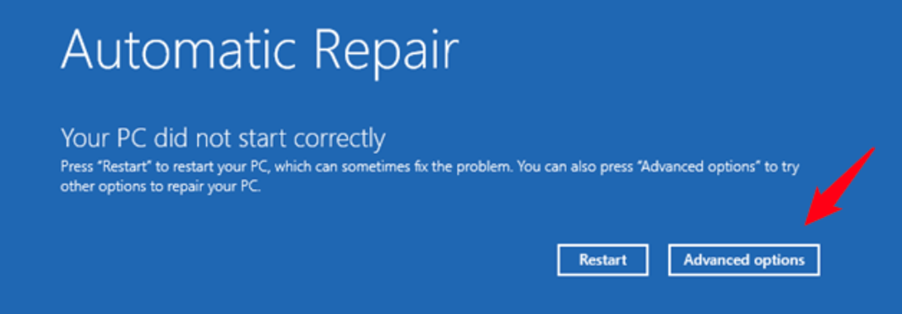
- Choose Troubleshoot.
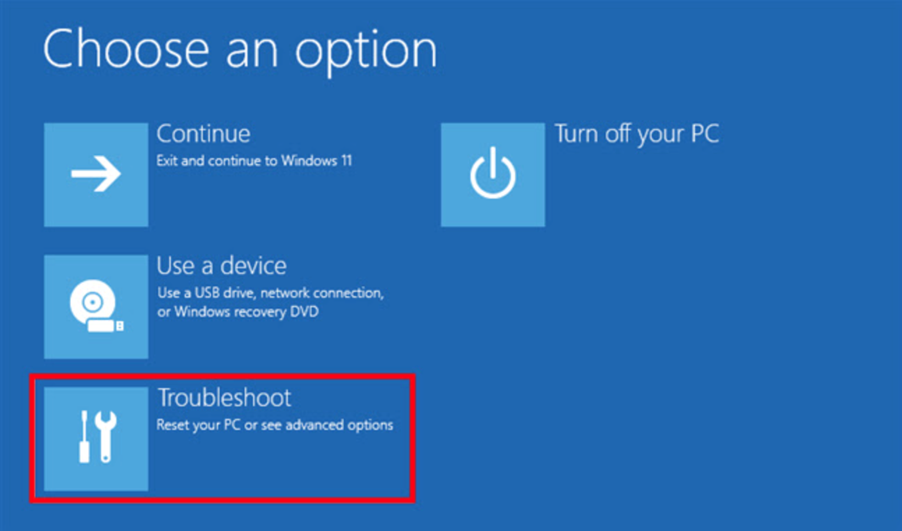
- Choose Advanced options.

- Choose Startup Settings.
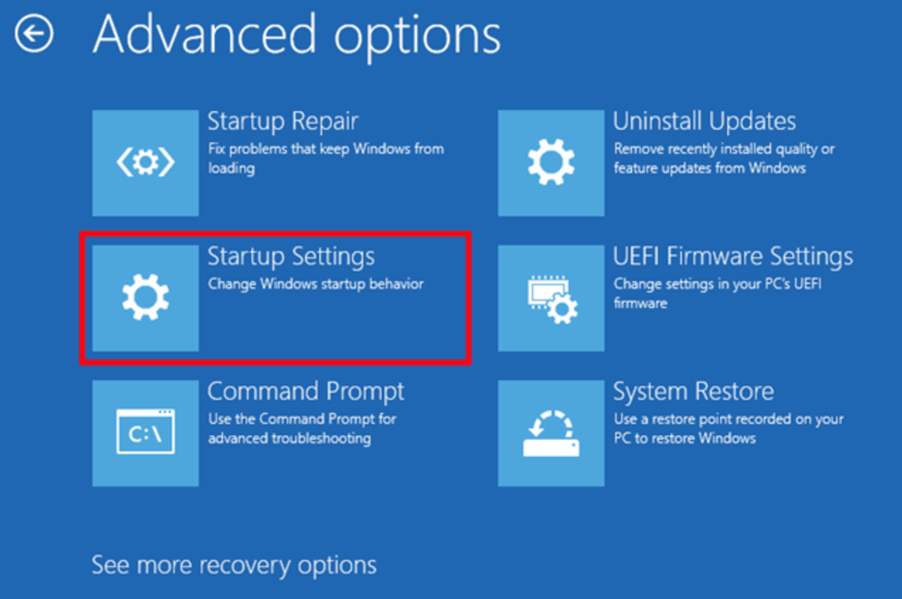
- Select Restart.
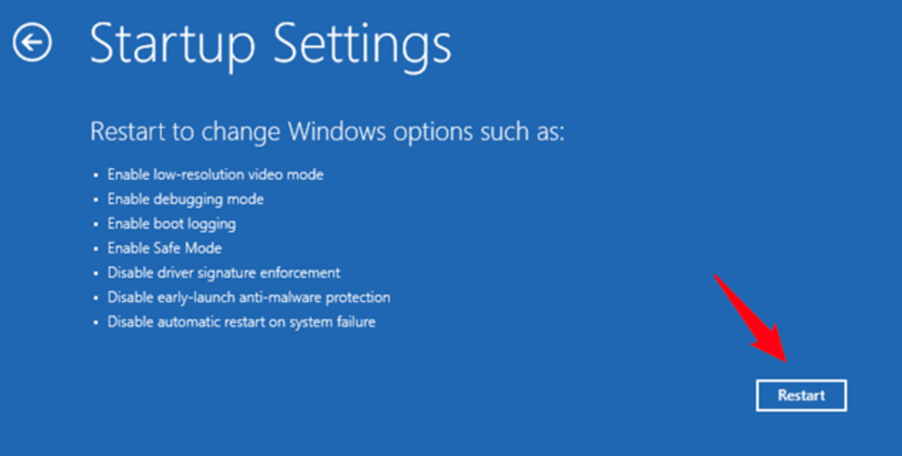
- Select option 6.
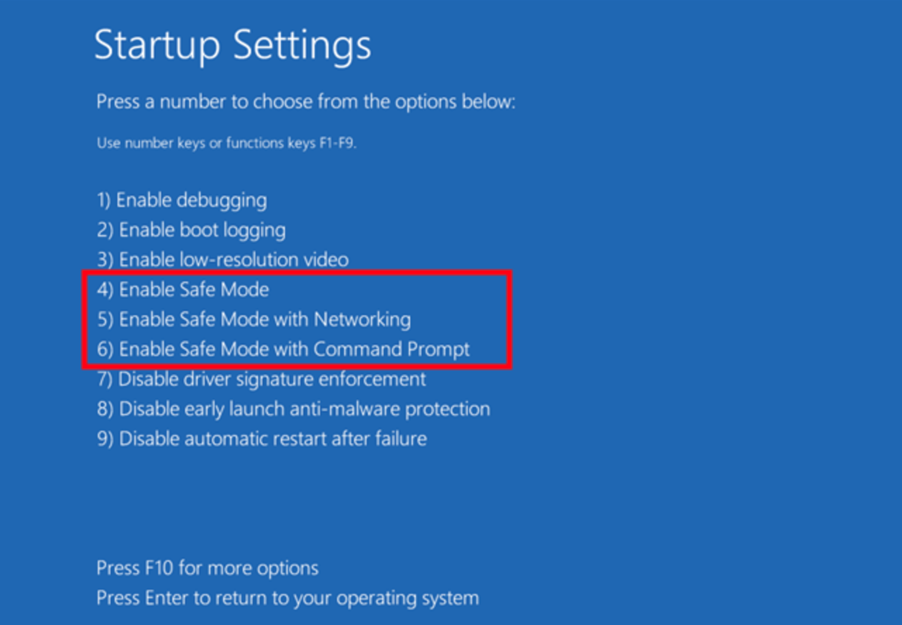
- When the computer starts in safe mode with command prompt, type:
cd \windows\system32\drivers\Crowdstrike- then type:
del C-00000291*.sys - restart your computer.
When your computer reboots, you should have functionality restored. If your computer has not frozen or experienced a blue screen, no action is needed and it should not have a problem going forward.
If command prompt safe mode doesn't work, boot into safe mode normally instead and delete the file using Windows Explorer.
How to retrieve your BitLocker Recovery Key
- Choose Devices.
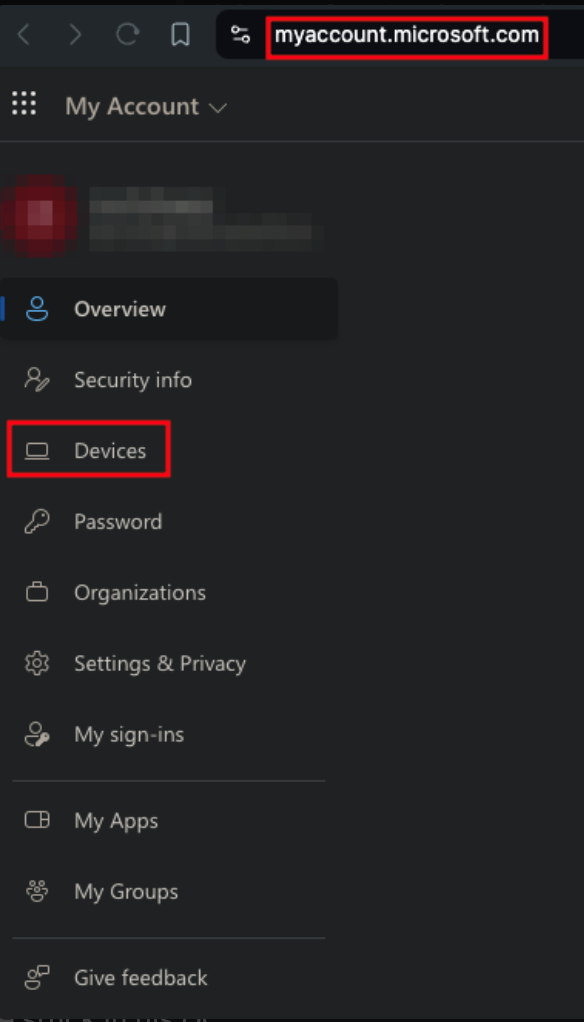
- Select the dropdown.

- View the BitLocker Key.

- Show the recovery key.
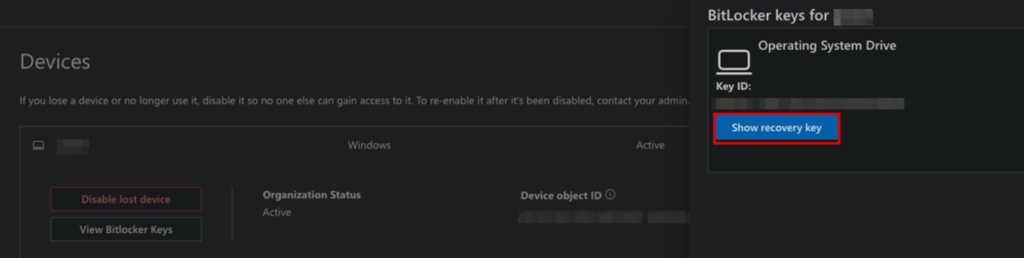
- Select Copy on the right.
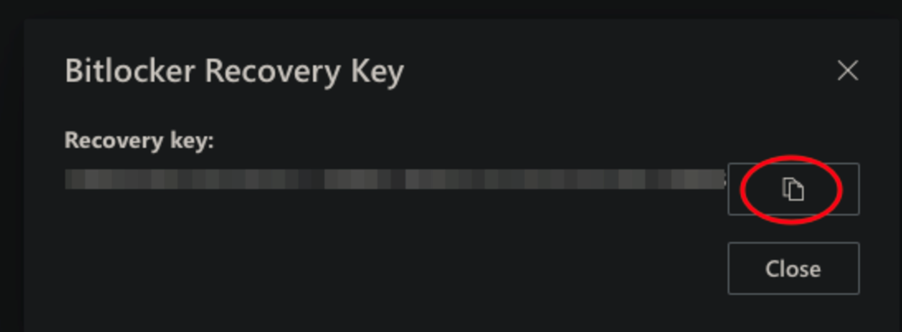
Additional Support
If you have CrowdStrike with NaviSec, our engineering team can provide you a list of potentially impacted hosts. If you'd like the list, please request it by submitting a ticket to support@navisec.io.
If you are experiencing issues, please contact us at support@navisec.io.
For the newest technical details, see https://www.crowdstrike.com/blog/technical-details-on-todays-outage/.